How to choose the description on a new quote, invoice, or purchase line?
TB Books · settings · Last updated November 28, 2026 · Version 1
This process works in apps: TB Books, TB POS
This article will teach you how to choose whether a new line uses the product Description or brand, model, and size.
Description on new lines is one choice shared by Books and POS. Product description copies the Description on the product. When that field is a long company story, the line on a quote, work order, invoice, or purchase order runs long. Brand and model writes brand, model, and size instead, such as a brand and a model name. The line title above the description still shows brand, model, and size. Lines already on a document stay as they are.
Steps
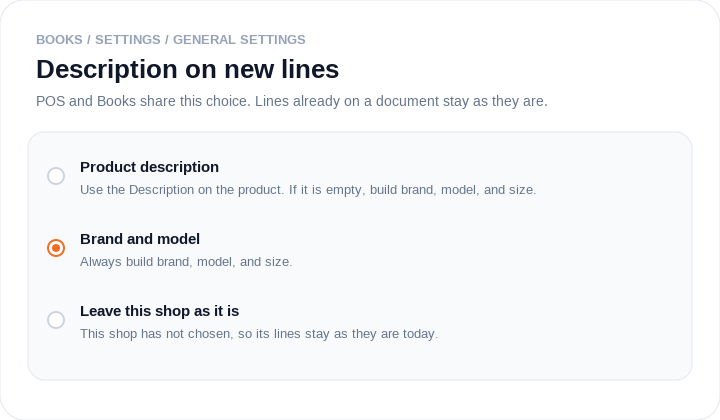
- In Books, open Settings and choose General Settings. In POS, open POS Settings and choose POS Preferences. Both show the card Description on new lines.
- Product description uses the Description on the product. If Description is empty, the line uses brand, model, and size.
- Brand and model always writes brand, model, and size. A service or fee with no brand keeps its name.
- Leave this shop as it is keeps the line text the shop already gets. POS inventory search keeps brand and model. Screens that already use the product Description keep using it.
- Select Brand and model. The card shows Saved. POS and Books share this choice, so changing it in either app changes it in the other.
- Add the product on a new quote, work order, invoice, or purchase order. The description is brand, model, and size.
- Lines already saved stay as they are. On a document you can still edit, remove the item and add it again to use the new choice.
Conclusion & best practices
Use Brand and model when the product Description is a long story and the line should name the part. Use Product description when Description is a short spec you want on the line. A fee or service with no brand keeps its name either way.