How to export Payments Received by invoice in Books?
TB Books · reports · Last updated November 28, 2026 · Version 1
This process works in apps: TB Books
This article will teach you how to download each paid invoice on its own row from Payments Received Detail.
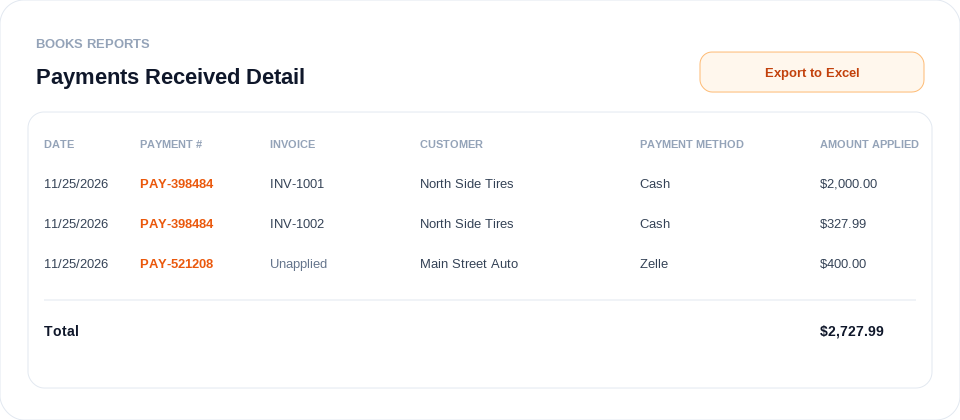
Payments Received on the Orders page shows one line for the whole payment. When that payment covers several invoices, the line shows a count instead of each invoice. Payments Received Detail is the report for that list. Each invoice is its own row, with the date, the payment number, the customer, the payment method, and the amount applied to that invoice. Money that was not applied to an invoice is a row named Unapplied. A refund is a negative amount. The rows for one payment add up to that payment.
Steps
- Open Books, then Reports.
- Open Payments Received Detail.
- Set the date range. To limit the report to one shop, open Filters and choose Location.
- Read the table. A payment that paid several invoices has one row per invoice. Unapplied is money from that payment that is not on an invoice yet. A refund shows as a negative amount.
- Open the download menu and choose Export to Excel. Export to CSV and Download PDF are in the same menu. Print / Save PDF opens the preview.
- In Excel, Amount Applied is a number, so you can total the column. The last row is the total of the rows above it.
Conclusion & best practices
Use this report when a payment covers more than one invoice and you need each invoice for reconciliation. The Orders list still shows one line per payment.