How to record a vendor return or RMA in Books?
TB Books · vendor-credits · Last updated November 25, 2026 · Version 1
This process works in apps: TB Books
This article will teach you how to record a vendor return as a Vendor Credit, and why a purchase order or bill cannot go negative.
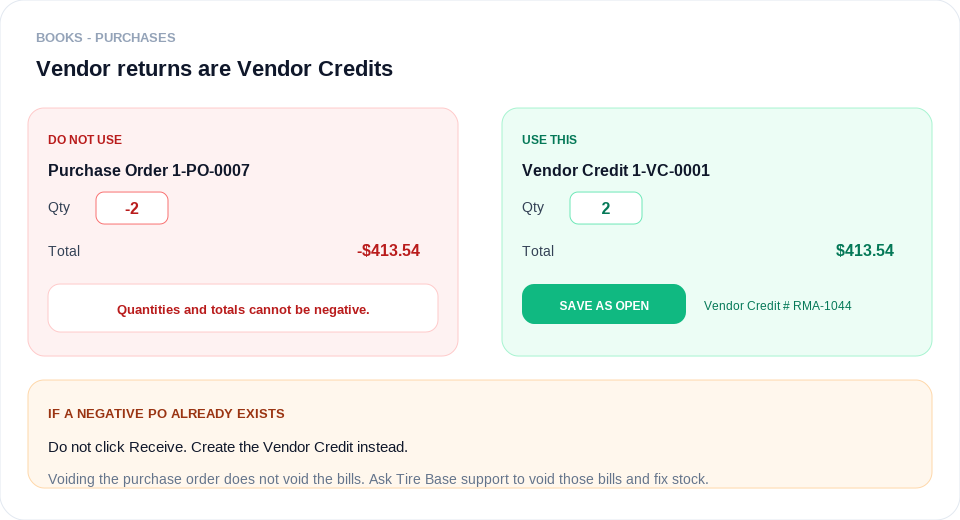
A purchase order and a bill are buys. They cannot have a negative quantity or a negative total. If the vendor is taking product back, or issued an RMA, that is a Vendor Credit with a positive quantity of the items going back. The credit amount is a positive number that the vendor owes you. Voiding a purchase order does not void the bills created when it was received — those bills stay on the vendor until you void them.
Steps
- Open Books, then Purchases, then Vendor Credits. You can also open the vendor and click New Transaction, then Vendor Credit.
- Click New Vendor Credit and select the vendor.
- Add the returned product. Type a positive quantity — the number of units going back to the vendor, not a minus number.
- Enter the vendor’s RMA or credit number in Vendor Credit #. Leave it blank until the vendor issues it if you do not have it yet.
- Click Save as Open. The credit posts Accounts Payable down and takes those units out of stock.
- If Save, Receive, or Partial Receive on a purchase order or bill says Quantities and totals cannot be negative, stop. Open Vendor Credits instead of typing a minus quantity.
- If a negative purchase order already exists, do not click Receive. Create the Vendor Credit, then ask Tire Base support to void the bad purchase order and any bills it created. Voiding the purchase order alone leaves those bills on the vendor.
Conclusion & best practices
Use a Vendor Credit for returns, overbills, and RMAs. Do not create a negative purchase order or a negative bill, and do not receive a purchase order that already has a minus quantity. A customer Credit Memo is the other direction — money and stock coming back from a customer, not a vendor.