How to send a text or email when an invoice, work order, or B2B order changes?
TB Books · settings · Last updated October 21, 2026 · Version 1
This process works in apps: TB Books, TB POS, TB Sync, TB CRM, TB WMS
This article will teach you how to create a workflow rule from a template for a review request, a new B2B order, or a status change.
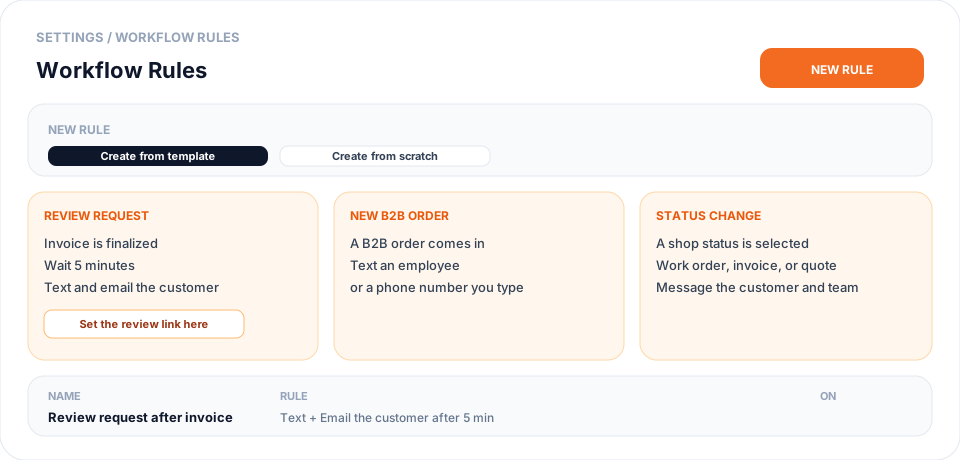
Workflow Rules send a text, an email, or an in-app notification when something happens to an invoice, work order, quote, or B2B order. The page is a table of the rules you already created, plus New rule. New rule asks you to create from a template or from scratch. The templates are Review request, New B2B order, and Status change. The review link is set on the Review request rule. It is not a box above the list. Auto-add rules and bank rules stay on their own pages.
Steps
- Open Settings, then Organization Settings, then Workflow Rules.
- The Rules tab is a table of rules you already created. Activity shows what a rule sent or skipped.
- Click New rule. Choose Create from template, or Create from scratch when none of the templates fit.
- Choose Review request to text and email the customer 5 minutes after an invoice is finalized. On that rule, choose Use a saved link (the organization link, or a location that already has one) or Enter a new link, then Save review link, then Create rule.
- A location can keep its own review link under Organization Settings, then Locations. Documents at that location use it. Every other location uses the organization link.
- Choose New B2B order to text an employee, or a phone number you type, when a B2B order comes in. Pick that person or type the number, then Create rule.
- Choose Status change to message the customer and your team when a work order, invoice, or quote is set to a shop status. Pick the status. If none are listed, add them in Books under Document Statuses, then come back and create the rule.
- Use the On switch on a row to turn that rule off. Edit, duplicate, or delete it from the row menu.
Conclusion & best practices
Start from the template that matches the job. Set the review link only when you choose Review request, or when you edit a rule whose message includes the review link. Do not use Auto-add rules or Bank rules for these messages.