How to add a part manually on a POS job?
TB POS · settings · Last updated November 11, 2026 · Version 1
This process works in apps: TB POS
This article will teach you how to turn on Add part manually for the shop, and how to save that typed part into the catalog.
Add part manually is a shop setting. It is off until you turn it on, so Add parts on a job does not show that choice. A second switch, Save part if added, is also off. Leave it off when the typed part should stay on this job. Turn it on when Tire Base should create the catalog product as the part is added. These switches are for the whole counter. They are not a per-person permission.
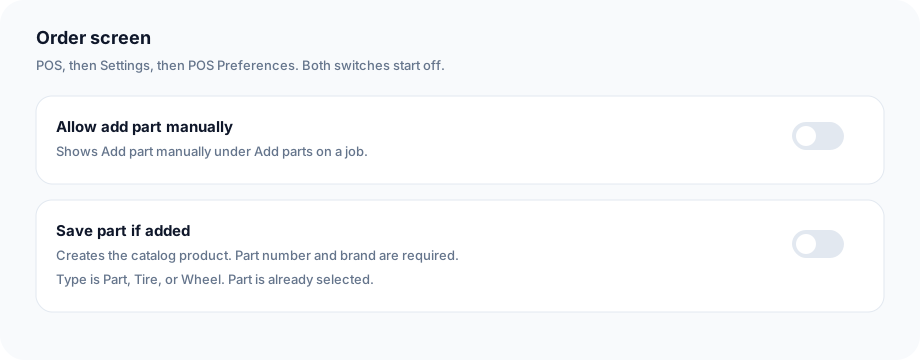
Steps
- Open POS, then Settings, then POS Preferences. Scroll to Order screen.
- Turn on Allow add part manually. It stays off until you turn it on. Add parts on a job then includes Add part manually. Part from inventory, Add part from PartsTech, and Add tires from fitment data stay available either way.
- Leave Save part if added off when the typed part should stay on this job and not become a catalog product.
- Turn on Save part if added when the typed part should be created in the catalog as you add it. Part number and brand are then required, and you choose the type: Part, Tire, or Wheel. Part is already selected.
- Open a quote or work order. On the job, click Add parts, then Add part manually.
- Enter the part name. If Save part if added is on, enter the brand and the part number, and choose the type.
- Enter the quantity, cost, and retail, then click Add line.
- With Save part if added on, that product is in the catalog. If that part number and brand are already there, the job uses the existing product.
Conclusion & best practices
Turn Allow add part manually on before you look for the menu. If Add part manually is missing, that switch is still off. Save part if added is separate, and it is also off until you turn it on. This is not under Settings, then Permissions. Allow manual discounts is a different switch, and that one also needs a permission for the person.