How do I keep staff out of Books and cash flow?
TB One · users · Last updated November 10, 2026 · Version 1
This process works in apps: TB One, TB POS, TB Books
This article will teach you how to give counter staff the POS app only, so they cannot open Books or see cash flow.
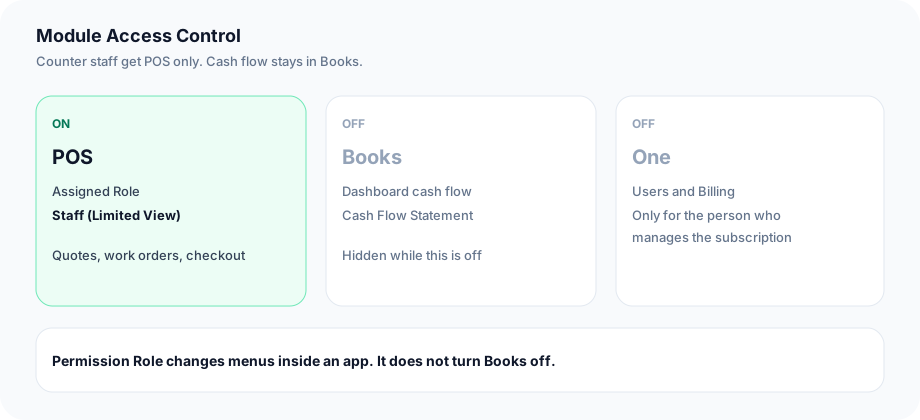
Cash flow lives in Books: the Cash Flow card on the Books dashboard, and the Cash Flow Statement under Books → Reports. A Permission Role changes menus inside an app the person already has. It does not remove the app. To keep someone out of Books, turn the Books switch off under Module Access Control and leave POS on. Counter staff need POS only. The One app is for the person who invites users or manages subscription payments.
Steps
- Open Settings → Organization Settings → Employees / Users. This page is in POS and in every other Tire Base app.
- Click Manage Users in ONE. That opens TB One on the Users page.
- Find the person and click Edit.
- Under Module Access Control, turn the Books switch off. Turn off every other app this person should not open. Leave POS on.
- On the POS card, set Assigned Role to Staff (Limited View). Use Administrator (Full Access) only when this person should manage POS settings.
- Leave the One card off unless this person invites users or manages subscription payments on Billing.
- Click Done. Ask that person to sign out and sign back in. Their app list should show POS.
- The Permission Role column sets the toggles in Settings → Permissions. Those toggles change menus inside an app. Cash flow stays available while the Books switch is on.
Conclusion & best practices
Counter staff need POS only. They open the POS app and work from there. The person who invites users or pays the subscription is the one who also needs One. With Books off, the dashboard cash flow card and the Cash Flow Statement are not on their app list.