When do I connect my own domain for a B2B portal or widget?
TB Sync · sales-channels · Last updated October 11, 2026 · Version 1
This process works in apps: TB Sync
This article will teach you when a B2B portal, B2C widget, or Dropship portal needs your own hostname, and when pasting an embed on an existing website does not.
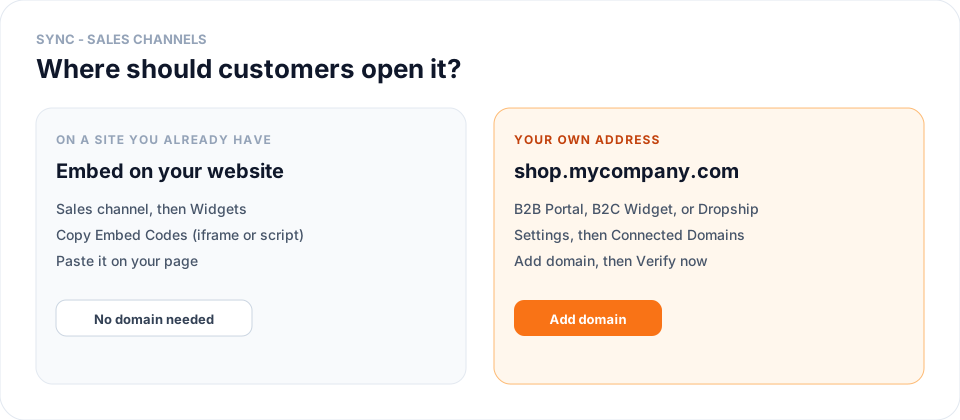
There are two ways to put a sales channel in front of dealers or shoppers. Paste the widget into a website you already have, or give the channel its own address such as shop.mycompany.com. A custom domain is only the second case.
Steps
- If the booker or tire widget will sit inside a page on a site you already have, open that sales channel in Sync, go to the Widgets tab, and copy Embed Codes (the iframe or the script). Paste it on the page. You are done — do not add a domain.
- If people should type your company’s address and land on the B2B Portal, the B2C Widget, or the Dropship Portal by itself, open Settings in Sync, then Connected Domains.
- Click Add domain. Enter the hostname (for example shop.mycompany.com or b2b.mycompany.com) and choose the B2B Portal, B2C Widget, or Dropship Portal it should open.
- Copy the DNS records Sync shows into your domain registrar, then click Verify now. Status stays Needs setup until those records are detected.
- When status is Connected, open the hostname in a browser. Use Make primary if invites and emails should use that address. The Tire Base link stays listed as Default.
Conclusion & best practices
Embedding and a custom domain solve different jobs. A widget inside your existing site keeps using Embed Codes. A portal or widget that should open on your brand’s hostname uses Connected Domains. The Tire Base URL keeps working either way. Record-by-record setup is in How to connect your own domain to a sales channel?. The booker embed is in How to set up the Service Appointment Booker widget in Sync?.