How to embed website widgets from a sales channel in Sync?
TB Sync · sales-channels · Last updated October 21, 2026 · Version 1
This process works in apps: TB Sync
This article will teach you which embed each sales channel offers, where to paste it, and how to open Local Preview or Production Preview.
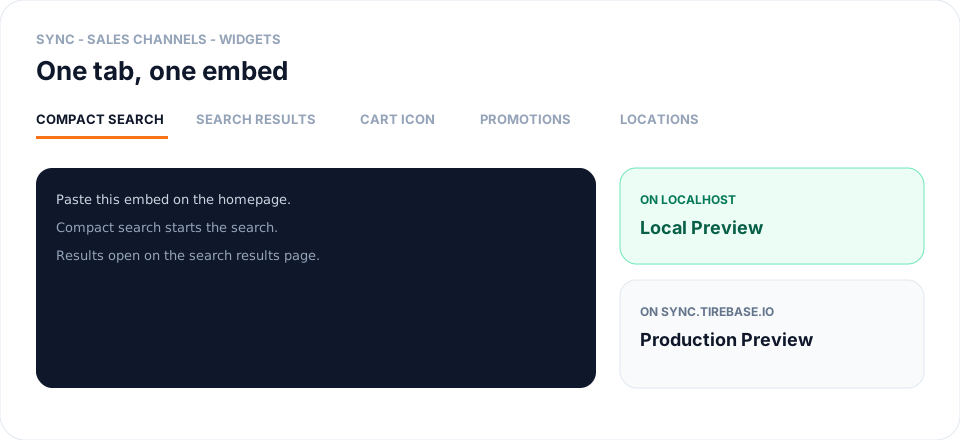
Each sales channel has a Widgets tab. The tabs on that page are the embeds you can paste onto a website. A B2B portal has Login. A B2C Widget has Compact search, Search results, Cart icon, Promotions, and Locations. An Appointment Booker has Appointment. The preview button follows the Sync site you are using: Local Preview on localhost, Production Preview on sync.tirebase.io.
Steps
- Open Sync, go to Sales Channels, and open the channel.
- Open the Widgets tab. B2B shows Login. B2C shows Compact search, Search results, Cart icon, Promotions, and Locations. Appointment Booker shows Appointment.
- Stay on the tab for the page you are editing. Compact search belongs on the homepage or in a sidebar. Search results belongs on its own shop page in the top navigation. The cart icon belongs in the site header. Promotions belongs on the homepage or a coupons page. Locations belongs on a shop-finder page. Login belongs where a dealer signs in. Appointment belongs on the booking page.
- Click Local Preview when Sync is open on localhost. Click Production Preview when Sync is open on sync.tirebase.io. The button opens this channel’s widget for that tab. Local Preview uses localhost:3015 for shop and appointment embeds, and localhost:3006 for the B2B login. Production Preview uses widgets.tirebase.io, or b2b.tirebase.io for login.
- Copy the embed code on that tab and paste it on the matching page of the website. Compact search, the cart icon, promotions, and locations send the shopper to the search results page, so that page has to exist.
- On a B2C channel, set tires, wheels, packages, checkout, theme, and services on the Settings tab. The Widgets tabs are only the embed you paste. On an Appointment channel, set the booker on the Appointment tab. See How to set up B2C Widget checkout in Sync? and How to set up the Service Appointment Booker widget in Sync?.
- Save the channel, then place a test from the preview before you send the page live.
Conclusion & best practices
Paste the embed that matches the page. Use the preview button on that same tab so you are looking at the widget you are about to paste. A website you already have does not need a domain. Connect a domain only when the widget should open on your own hostname. See When do I connect my own domain for a B2B portal or widget?.